
How to Create AI Car Edit Videos for Free With AI
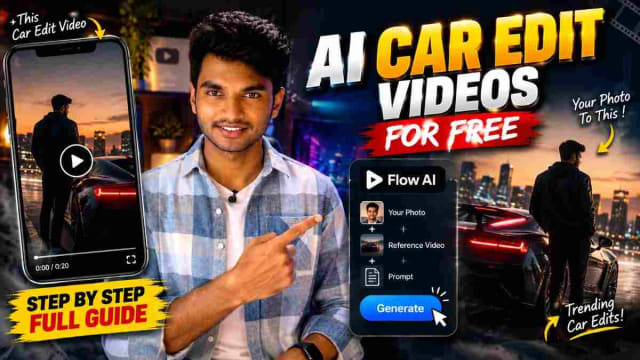
AI car edit videos are quickly becoming a popular way for people to create cinematic social media posts without the effort of traditional video editing.
With Flow AI, all you need is your photo plus a reference car edit video and a prompt to generate similar AI video with you as the subject.
In this guide, you'll learn how to create an AI car edit video using Flow AI, what files you'll need, and the prompts to use — including a backup approach if the video-edit version doesn't come out right on the first try.
What Is an AI Car Edit Video?
An AI car edit video is a short video generated by combining a person's photo, a reference car edit video, and an AI video-generation prompt.
By using the references provided, rather than manually recreating each transition, camera movement and visual effect, the AI can generate a new similar video.
This approach is great for creators experimenting with cinematic car edits, Instagram Reels, TikTok-style videos and AI video content in general.
What You Need to Create the Video
Before we start, prepare these three things:
Your clear photo
A car edit video to use as a reference
The AI video-generation prompt below
A clear photo will help the AI maintain your appearance, while the reference provides visual direction for the camera movement.
Steps to Create an AI Car Edit Video Using Flow AI
Step 1: Find or Download a Reference Car Edit Video
Find a car edit video whose style you want to recreate.
A good reference video should have clear visual movement, good quality footage, recognizable editing style, and camera movements you actually want to reuse.
Here's a reference clip you can study for pacing and camera movement: sample car edit reference video.
Note on sharing reference clips: a Google Drive share link like this can stop working if sharing permissions change later, so treat it as a temporary reference. If you're linking your own reference footage from this article long-term, hosting it as an unlisted YouTube video or a file on your own site's CDN is more reliable than a Drive share link.
Step 2: Open Flow AI
Open Flow AI and create a new project for video generation.
Step 3: Upload Your Photo
Upload the photo you want to use.
For better results, use a photo where your face is clearly visible, the image isn't overly blurred, your body position is relatively understandable, the lighting is reasonably clear, and the subject isn't obstructed.
Step 4: Upload the Reference Video
Upload your downloaded car edit video.
It will provide information about the movement, composition, camera direction, and overall visual sequence for the AI to work from. Here's a reference clip you can study for pacing and camera movement: sample car edit reference video.
Step 5: Use This Prompt
Paste the prompt below along with your photo and reference video:
✨ AI PromptTask: 1:1 In-Place Subject Replacement. Treat the reference video as a locked master plate. Replace only the driver with the person from the uploaded image. Keep the original camera angle, movement, framing, timing, speed ramps, car, environment, lighting, reflections, and composition exactly unchanged. Match the original driver’s body posture, steering gestures, head movement, gaze, expressions, and motion 1:1 frame-by-frame. Transfer the reference person’s exact identity, facial features, hair, skin texture, body appearance, and outfit without blending with the original driver. Integrate naturally with matching cabin lighting, shadows, windshield reflections, occlusion, motion blur, and depth of field. Only the driver changes. Everything else stays identical to the source video.
Step 6: Generate the Video
Click Generate. Processing time may be different depending on the platform and settings.
If Not Working, Use This With Only an Image
Yes. If you want to generate a new image from your person's photo, rather than editing the existing video, use a prompt that describes the shot itself.
Prompt — photorealistic driver shot
✨ AI PromptUse the uploaded person photo as the exact identity and appearance reference. Create a highly photorealistic cinematic frame of this person sitting in the driver's seat of a moving car, viewed from outside through the front windshield, matching a realistic Indian road-driving scene. The person is seated naturally behind the steering wheel, with their body, head, shoulders, arms and hands positioned naturally as a real driver. Maintain the exact facial identity, facial structure, hairstyle, skin tone, and overall appearance from the uploaded reference photo. Show the car interior, steering wheel, dashboard and windshield naturally surrounding the person. The camera is positioned outside the front of the vehicle, looking inward through the windshield. Use realistic windshield reflections and subtle glass glare without obscuring the person's face. The person should look naturally integrated into the vehicle, with physically correct proportions, realistic contact between hands and steering wheel, natural posture, realistic skin texture and authentic human anatomy. Cinematic realistic photography, natural Indian environment, realistic daylight, physically accurate lighting, realistic shadows, natural reflections, subtle depth of field, documentary-film realism, 35mm cinematic camera perspective, highly detailed, photorealistic. 16:9 landscape composition. No text, no subtitles, no logos, no watermark, no extra people, no distorted hands, no duplicated limbs, no artificial-looking face, no cartoon or CGI appearance.
If you want it to match your uploaded driving footage more closely
Add this at the end:
✨ AI PromptComposition reference: front windshield perspective, driver positioned approximately in the same area of the frame as the reference scene, camera at approximately eye/chest level outside the vehicle, natural windshield reflections, realistic driving environment, medium-wide framing showing the driver together with the steering wheel and surrounding dashboard.
Important: If the goal is eventually to turn this generated image into the same moving shot in Flow, keep the person's pose and camera composition relatively simple. That gives the video model much less to fight with when animating it.
My Experience With This Workflow
The direct video-edit prompt (step 5) worked best on reference clips with a consistent, simple camera angle — typically straight-on or slightly angled shots through the windshield. On clips with fast transitions or handheld camera shake, the driver swap became noticeably distorted, which is exactly when the image-first fallback approach was worth switching to. Generating the still image first, checking that the pose and lighting look right, and animating it produced far more consistent results than trying to fix a broken video-edit output after the fact.
Tips for Better AI Car Edits
Use a high-quality photo
A clear photo makes it easier for the AI to understand your appearance.
Choose a suitable reference video
If the reference video has complicated movements, unusual camera angles, or very fast transitions, the generated result may vary more than expected.
Keep your prompt specific
Rather than simply writing "make a car edit," describe the subject, camera movement, environment, lighting and visual style you want to have — as the prompts above do.
Use vertical format for Reels
If you're creating content for Instagram Reels or similar platforms, use a 9:16 vertical composition. The image-fallback prompt above defaults to 16:9 landscape, so adjust the aspect ratio line if you need vertical instead.
Preserve your identity
Include instructions asking the AI to maintain your facial identity and overall appearance throughout generation, as both prompts above do.
Why AI Car Edits Are Useful for Creators
Traditional video editing can require multiple steps — cutting footage, adding transitions, adjusting color, creating effects, and synchronizing camera movements. AI video-generation tools simplify experimentation by letting creators provide references and describe the desired result through a prompt.
This makes AI car edits particularly useful for Instagram Reels, short-form videos, personal branding, automotive content, creator portfolios, and general AI experimentation.
FAQ
Can I create an AI car edit from my own photo?
Yes — the workflow here uses your photo as the main visual reference and a car edit video as the reference for the desired visual sequence.
Do I need professional video-editing skills?
No. The workflow is built around uploading references and using an AI prompt, so you don't need to manually recreate every effect.
What type of photo should I use?
Use a clear, high-resolution photo where your face and appearance are easily recognizable.
What if the video-edit prompt doesn't produce a clean result?
Switch to the image-first fallback prompt above, generate a still frame, confirm it looks right, and animate that image separately rather than editing the reference video directly.
Will the generated video be identical to the reference?
Not necessarily. AI generation interprets reference videos differently each time — treat the reference as visual guidance rather than a guarantee of frame-for-frame reproduction.
Final Thoughts
Creating an AI car edit video with Flow AI is a simple way to experiment with cinematic short-form content: upload your photo and reference video, use the prompt above, and generate. If the direct video-edit approach doesn't come out clean, the image-first fallback gives you a reliable backup path — generate a still frame first, then animate it.
Written by Dinesh — full-stack developer and content creator testing AI video prompts for real-world use. This guide reflects hands-on testing of both the direct video-edit and image-first approaches before publishing.

DINESH
Lead EditorEditorial expert testing, curating, and documenting the best AI tools, gadgets, creative setups, and lifestyle gear in India.
Continue Reading
Recommended Stories
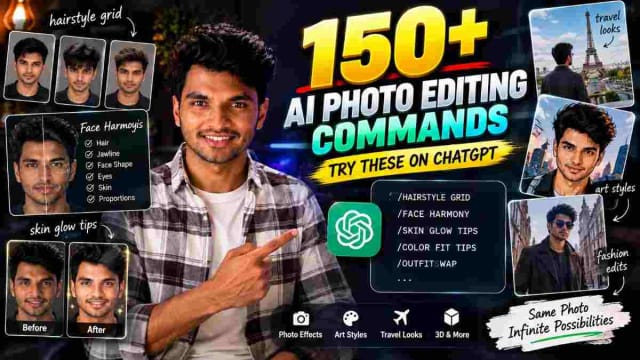
150+ AI Photo Editing Commands | The Ultimate AI Image Prompt Command List
Discover 150+ AI photo-editing commands you can use with ChatGPT to transform your photos. From hairstyle grids, face harmony and skin glow tips to color suggestions, cinematic edits, travel looks and creative styles, these simple commands can help you explore new AI-powered photo ideas with just a few prompts.
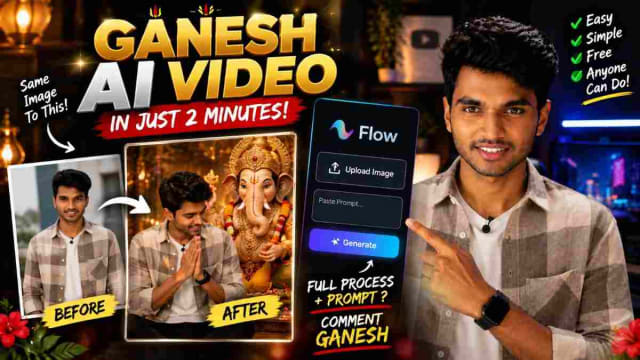
Ganesh AI Video: Create a Ganesh Festival Video With Google Flow Using One Prompt
Create a stunning **Ganesh AI video** using your own photo and a simple prompt in Google Flow. This guide explains how to upload your image, add a cinematic Ganesh festival prompt, and generate a personalized devotional-style video for Instagram Reels, YouTube Shorts, and WhatsApp Status. 🙏✨
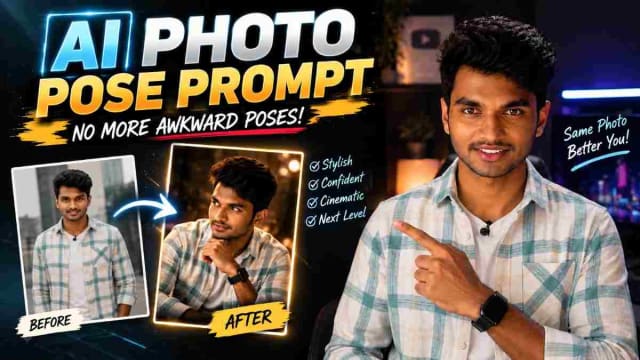
Best AI Photo Pose Prompt: Make Yourself Look Better With Less Posing
Struggling to pose naturally in photos? 📸 An AI photo pose prompt can help transform an ordinary picture into a more stylish and confident-looking image. Simply upload your photo, paste the right prompt, and experiment with different poses, compositions, and photography styles—all without needing professional posing skills.