
Blackmagic Camera: Turn Your Phone Into a DSLR-Style Cinema Camera
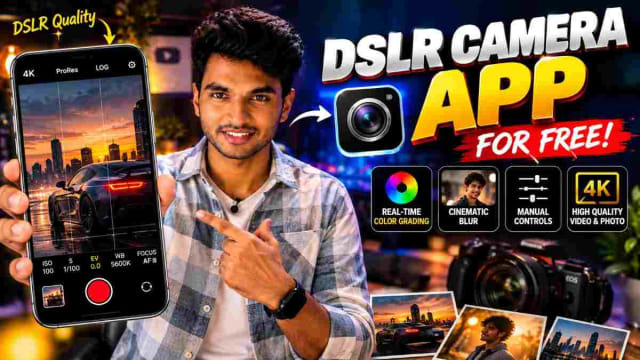
Are you looking to capture DSLR-style photos and videos using your smartphone? 📸🎥
Most phone cameras default to mostly automatic settings. Blackmagic Camera is a free app from Blackmagic Design, the company behind professional cinema cameras and DaVinci Resolve which lets you have manual control of the same settings you'd find on a camera using your phone.
In this guide, I'll explore what the app has to offer: manual ISO, shutter angle, white balance, and frame rate, as well as previewing a LUT-based color style in real-time.
Official app: Blackmagic Camera on Google Play (free, published by Blackmagic Design Inc.)
1. Capture DSLR-Style Photos and Videos
Blackmagic Camera is focused on giving you more exposure control of your smartphone's camera than the default app provides.
Instead of simply launching the default app and hitting record, you can tweak the settings for the scene and/or desired look for use in:
Cinematic videos
Instagram Reels
YouTube videos
Travel photos
Portrait videos
Product videos
Social media content
2. Real-Time Color Preview With LUTs
Blackmagic Camera allows you to apply a LUT (a preset for grading footage) and preview it in real-time while you shoot, versus grading it after the fact.
This could help you commit to a certain style before you start shooting (example: a warm cinematic look, cool look, high contrast look, or realistic look) instead of waiting to grade it in the edit later.
3. Manual DSLR-Style Camera Controls
The app's most compelling feature is manual control of the settings you'd find on a camera, including frame rate, shutter angle, white balance, and ISO, in a single tap, according to the app's Google Play listing.
ISO
ISO determines how sensitive the camera is to light. A lower ISO typically results in a better "cleaner" image when in good lighting, and raising ISO helps you capture more light in low-light environments, but can result in more "noise" being captured in the image.
Shutter Angle
Shutter angle (the cinema-camera equivalent to shutter speed) determines how much motion blur is captured by the camera on a moving subject. A lower shutter angle will have a sharper and more "stuttering" motion, while a higher shutter angle will look smoother.
White Balance
White balance determines how the camera interprets the color of the light in the scene, helping to ensure colors look natural under different lighting conditions.
Frame Rate
Frame rate determines how many frames are captured per second, which impacts the look of motion and the ability to slow down recorded footage later.
Recording and Cloud Features
Blackmagic Camera can record directly to Blackmagic Cloud using industry-standard files up to 8K, enabling collaborative editing of DaVinci Resolve projects with others in real-time. The app also supports live-streaming to YouTube, Twitch, and Facebook. Some features depend on the device you're using.
Why Manual Camera Controls Matter
Automated camera settings are convenient, but manual camera controls provide more consistency when it comes to capturing content. For example, if you're recording multiple clips for the same Reel, manually locking your white balance and ISO can help you retain a similar look across the clips. It's ideal for anyone who wants more control over their footage, without having a dedicated camera.
Can a Phone Camera Really Replace a DSLR?
An application doesn't make a physical device identical to another product. Image quality still depends on the phone's camera hardware, sensor size, lenses, lighting, resolution, dynamic range, and stabilization. While a camera app like Blackmagic Camera provides more creative and manual control, it doesn't upgrade the physical hardware of your phone's camera.
My Experience Using the App
I downloaded Blackmagic Camera from the Play Store and tested it against the stock camera app using the same clips. The most noticeable changes were when using the manual white balance and ISO settings -- when in mixed indoor lighting, the clips looked much more consistent from clip-to-clip when I manually locked these settings instead of leaving it on auto. One thing to note when trying out this app yourself (and as other Play Store reviews have mentioned): this is a video-centric app, meant for recording, not taking photos using your phone.
How to Get Started
Step 1: Install the App
Go to the official Google Play link above and install Blackmagic Camera and allow the permissions the app requests.
Step 2: Set Your Manual Controls
Use the on-screen HUD to manually set the ISO, shutter angle, white balance, and frame rate for your environment.
Step 3: Apply a LUT for Color Preview
Select a LUT to preview your color style before recording.
Step 4: Start Recording
Once happy with your settings, start recording and use the heads-up display to view your footage as you shoot.
Official app: -Blackmagic Camera on Google Play— free, published by Blackmagic Design Inc
Is This Useful for Content Creators?
Manual controls can be beneficial if you're trying to create Instagram Reels, YouTube Shorts, product videos, or other cinematic social media content regularly. Getting closer to your desired look while shooting also enables you to spend less time grading your footage.
FAQ
Is Blackmagic Camera free?
Yes, Blackmagic Camera is free to download and use (published by Blackmagic Design Inc. on Google Play).
Do I need a Blackmagic camera to use this app?
No, Blackmagic Camera is meant as a standalone camera app on Android phones and you don't need any Blackmagic hardware to use it.
Can I take photos with this app?
No, Blackmagic Camera is meant for video recording, not still photos.
Which phones support all the features?
Some features (Blackmagic Cloud recording, etc.) are device-dependent and may not be available on certain devices. See the app's listing on Google Play for your device.
Should I download this from a third-party APK site instead of the Play Store?
No, only install this from the official link above on Google Play. Third-party APK download sites aren't verified by Google Play Protect and you unnecessarily expose yourself to risk for an app that's freely available through an official channel. Written by Dinesh — full-stack developer and content creator covering practical tech and camera apps. This review is based on hands-on testing and Blackmagic Design's official Play Store listing.

DINESH
Lead EditorEditorial expert testing, curating, and documenting the best AI tools, gadgets, creative setups, and lifestyle gear in India.
Continue Reading
Recommended Stories
How to Create AI Car Edit Videos for Free With AI
Learn how to create cinematic AI car edit videos using Flow AI. Upload your photo and a reference car video, add an AI video prompt, and generate a realistic car edit for your social media content.
150+ AI Photo Editing Commands | The Ultimate AI Image Prompt Command List
Discover 150+ AI photo-editing commands you can use with ChatGPT to transform your photos. From hairstyle grids, face harmony and skin glow tips to color suggestions, cinematic edits, travel looks and creative styles, these simple commands can help you explore new AI-powered photo ideas with just a few prompts.
Ganesh AI Video: Create a Ganesh Festival Video With Google Flow Using One Prompt
Create a stunning **Ganesh AI video** using your own photo and a simple prompt in Google Flow. This guide explains how to upload your image, add a cinematic Ganesh festival prompt, and generate a personalized devotional-style video for Instagram Reels, YouTube Shorts, and WhatsApp Status. 🙏✨